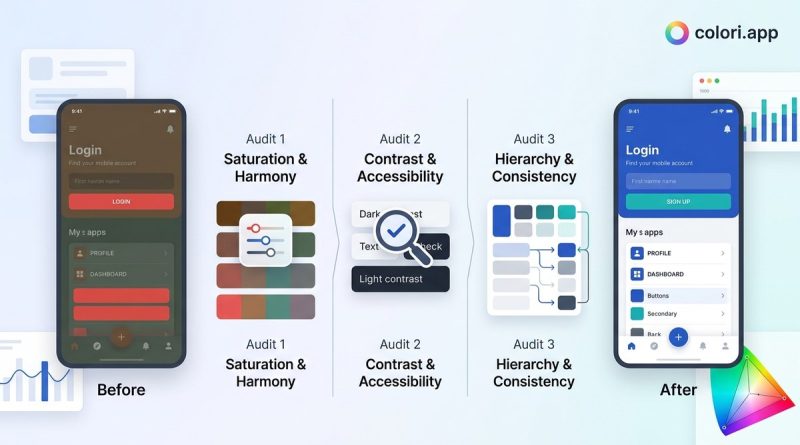
How to Fix a Muddy Color Palette in 3 UI Design Audits
Muddy UI colors usually come from three fixable problems: poor hue relationships, inconsistent saturation, and weak contrast between light and dark. Instead of starting over, audit your palette by converting colors to HSL, checking chroma levels, and testing grayscale contrast. Adjust one variable at a time, lean on OKLCH for even spacing, and let a tool like [Colori](https://colori.app) do the heavy lifting.
Muddy colors are sneaky. They look fine while you are building, then suddenly the whole interface feels dull, grayed out, or just… off. You open your Figma file, stare at the palette, and something feels wrong. The buttons look dirty. The background looks like it has a weird tint. The primary color that looked vibrant in the color picker now reads like a faded brick.
If this sounds familiar, you are not alone. Every designer hits this wall. The good news? Muddy UI colors are almost always a fixable problem, not a talent problem. You just need a repeatable audit process.
This guide walks through three practical audits you can run on your palette today. No fluff, no vague advice. Just concrete checks that reveal why your colors look muddy and exactly what to adjust.
Muddy UI color palettes usually fail because of low contrast, overly desaturated hues, or neutrals with hidden color casts. Fix them by auditing saturation and lightness first, then checking color harmony, and finally testing contrast ratios. Use HSL and OKLCH tools to measure, adjust hue angles, and rebuild neutrals. These three audits will make your interface feel cleaner, crisper, and more intentional.
What Makes a UI Palette Look Muddy?
Muddy colors have a specific look. They feel heavy, dull, or slightly dirty. The interface loses that crisp, modern feel. But the problem is rarely one bad color. It is usually a relationship issue between colors.
Common causes include:
- Colors that are too close in lightness, so nothing stands out.
- Overly desaturated hues that read as gray or brown.
- Too many mid tone colors with no clear lights or darks.
- Neutrals with a hint of the wrong undertone.
- Contrast that is too low for text, borders, or icons.
The good news? You do not need a design degree to fix it. You need a repeatable audit process. This guide walks through three practical audits you can run in Figma or any design tool. Each one takes a few minutes and will help you spot the exact colors causing the mud.
Why Colors Look Muddy in the First Place
Muddy UI colors usually come from one of three issues: low saturation, poor value range, or conflicting undertones. When colors sit too close together in lightness and saturation, they blend into a grayish soup. The interface loses contrast, depth, and that crisp feeling users associate with polished products.
The fix is not about picking brighter colors. It is about creating clear relationships between your colors. You need a palette with intentional contrast, consistent undertones, and enough breathing room between shades.
Before you open your design tool, understand this: muddy palettes are almost never a talent problem. They are a process problem. The colors you chose may be fine on their own. The way they interact in context is what creates the mud. The audits below will show you exactly where that happens.
Muddy UI colors usually come from three fixable issues: hue clashes, weak contrast, and oversaturated neutrals. Instead of starting over, audit your palette step by step. Check hue alignment, adjust saturation and lightness, and build a neutral ramp that supports your brand color. Small HSL tweaks, not full redesigns, fix most muddy palettes.
Start With a Color Audit, Not a Redesign
You opened the file and something felt off. The buttons looked grayish. The background felt heavy. The primary color lost its energy. That is a muddy color palette, and it happens to almost every designer at some point.
The good news: you do not need to start from scratch. A few targeted audits can rescue your palette.
This guide walks through three practical audits you can run in Figma or any design tool. Each one isolates a specific cause of muddiness. You will learn what to look for, how to fix it, and how to keep your colors clean in future projects.
What Makes a UI Color Palette Look Muddy
Muddy colors feel dull, grayed out, or low in energy. They often come from a palette where the hues are too close together, the saturation levels are inconsistent, or the lightness values bunch up in the same range. The result is a screen that feels flat, dirty, or visually heavy.
Muddy palettes happen to almost every designer at some point. It is not a talent problem. It is a process problem. When you know what to measure, you can fix it.
Here is a quick diagnostic list. Check your palette against these signs of muddiness:
- All colors have similar lightness values.
- The primary and secondary colors sit too close on the color wheel.
- Saturation is either too low across the board or unevenly distributed.
- Neutrals have a strange tint that makes the UI feel dull.
- The background and text colors clash instead of creating contrast.
If any of those sound familiar, the fixes below will help you rebuild the palette with intention.
What Makes a UI Palette Look Muddy
Muddy colors are not broken colors. They are colors that have lost their clarity. The problem usually comes from three sources: hue confusion, saturation drag, and value compression.
Hue confusion happens when your colors sit too close together on the color wheel. Think of a brownish orange next to a dull yellow-green. Neither pops. They blend into a visual fog.
Saturation drag happens when every color in your palette has been muted too much. A little gray can add sophistication. Too much gray makes everything look like wet cardboard.
Value compression is the sneaky one. If all your colors share the same lightness, the interface feels flat. You need contrast in value, not just hue, to create depth.
The fix is not about picking prettier colors. It is about auditing what you already have, finding the specific problem, and making targeted corrections. This guide walks through three practical audits you can run today.
Muddy UI colors usually come from muddy neutrals, low contrast between hues, or overmixing warm and cool tones. You can fix them by auditing hue alignment, checking saturation and lightness curves, and testing grays for hidden color casts. Use HSL and OKLCH to adjust, then verify with contrast tools. The result is a cleaner, more intentional palette that feels crisp and professional.
Why Your Palette Looks Muddy
Muddy colors are a common pain point. You pick colors that look great in isolation, then something feels off once they sit together. The interface looks dull, grayish, or just plain dirty. This happens to almost every designer at some point, and it is fixable.
The problem is rarely that you picked the wrong colors. The problem is usually how those colors interact. Muddy UI colors come from contrast that is too low, saturation that is inconsistent, or neutrals that carry unwanted color casts. The good news is you can fix all of these with a structured audit.
This guide walks through three practical audits you can run on any design file. Each one targets a specific cause of muddiness. By the end, you will know exactly which color is causing the problem and how to correct it.
Muddy UI colors usually come from three fixable issues: unclear color roles, inconsistent lightness, or bad mixing with grays. Audit your palette by isolating each hue, checking contrast ratios, and testing saturation levels. Then adjust with small, deliberate steps instead of starting over. A clean palette keeps your interface feeling intentional and polished.
Your palette looked so promising in the color picker. Then you applied it to the interface and something felt off. The buttons look dull. The background seems grayish. The primary color that popped on screen now reads as murky and tired. This is the classic muddy UI colors problem, and nearly every designer runs into it at some point.
The good news? You do not need to start over. Muddy color palettes usually come from a few fixable mistakes in how colors relate to each other. This guide walks through three practical audits you can run on your current palette, plus the exact fixes that will bring clarity and life back to your UI.
Muddy UI colors usually come from three fixable issues: hue contamination in neutrals, low tonal contrast between adjacent colors, and overusing desaturated dark shades. You can audit each of these in under an hour using HSL sliders, grayscale previews, and color contrast tools. The fix is a structured palette review, not a complete redesign.
What Makes a Color Palette Look Muddy?
Muddy colors feel heavy, dull, or slightly dirty. They lack the crispness that modern interfaces need. The problem is rarely one color. It is usually a relationship between colors that is off. The good news? You can fix it with a few focused audits.
Muddy UI colors usually share three traits:
- Low separation between hue families.
- Too many colors with similar lightness.
- Overuse of desaturated or grayed tones.
If your interface feels flat, heavy, or slightly “off” but you cannot tell why, one of those three is likely the culprit. The fix starts with seeing your palette the way a color model sees it, not the way your eyes do.
What Makes a UI Palette Look Muddy?
Muddy colors happen when hues blend into a brownish or grayish fog. The interface feels dull even when the brand colors look vibrant in isolation. This usually comes from a palette where the colors are too close in lightness, saturation, or hue.
Think about mixing paint. When you blend too many colors together, you get brown. The same thing happens in a digital palette. If every color sits at a similar lightness level and shares a similar undertone, they lose contrast and start to feel heavy.
Muddy palettes often come from three issues:
- Colors that are too close in lightness, so nothing stands out.
- Overly desaturated hues that lose their identity.
- Too many colors fighting for attention without a clear hierarchy.
The good news? You can audit and fix this in a structured way. No guesswork needed.
Why UI Colors Turn Muddy in the First Place
Muddy UI colors rarely happen by accident. They usually come from a few repeatable mistakes. Recognizing these patterns is the first step to fixing them.
Mistake 1: Picking colors in the wrong color model. Most designers default to RGB or HEX values. Those models are fine for screens, but they make it hard to control lightness and saturation. When you tweak a color by dragging sliders blindly, you often end up with colors that feel dull.
Mistake 2: Using too many low saturation colors. A palette where every color sits in the same muted zone can look flat. Without a few vivid anchors, the interface loses energy and starts to feel muddy.
Mistake 3: Ignoring color temperature. Warm and cool colors need balance. If every neutral leans warm, the palette can feel heavy. If everything leans cool, it can feel sterile.
Mistake 4: Skipping contrast checks. Low contrast makes colors blend together. Text becomes hard to read, and the whole UI looks hazy.
The good news? You do not need to start over. A few structured audits can reveal exactly where your palette went wrong.
Why UI Colors Turn Muddy
Muddy colors are usually a mix of three problems. Too much gray. Too little saturation. Or hues that clash instead of harmonize.
When you pick colors in a design tool, you often see them in isolation. A single swatch can look rich and vivid. But place it next to others, and the whole set can feel dull. This happens because our eyes compare colors side by side. A blue that looked bright on its own can turn gray when paired with a muted teal.
Another common cause is working in the wrong color space. If you are picking colors in RGB or HEX, you are working with a model that separates colors by how they are displayed, not by how humans perceive them. That makes it harder to control lightness and saturation consistently. Tools like colori.app help designers generate and test palettes in more perceptually accurate color spaces, which can save you from guessing.
Muddy palettes also happen when every color shares the same saturation and lightness. They all sit at the same visual “volume,” so none of them pop. The result is a flat, grayed-out interface that feels heavy instead of crisp.
The good news? This is fixable. You do not need to scrap the whole palette. You need to audit it, find the mud, and adjust with intent.
What Does a Muddy Color Palette Look Like?
Muddy colors feel dull, dusty, or slightly gray. They lack vibrancy even when they are technically saturated. Think of a blue that reads more like slate, or a green that looks like olive. The interface feels heavy, low contrast, and a bit lifeless.
Common symptoms in a UI:
- Buttons that look disabled even when they are active.
- Text that strains against its background.
- A palette where every color seems to blend into the next.
- Dark mode colors that look washed out or cloudy.
- Brand colors that feel muted in the actual product, even though they look bright in the swatch.
If any of these sound familiar, your colors are probably muddy. The good news is that this is fixable with a structured audit. You do not need to start over from scratch.
Why Palettes Turn Muddy
Muddy colors happen for a few reasons. The most common one is working in the wrong color space. Most designers start in hex or RGB, which are great for screens but terrible for making perceptual adjustments. When you try to darken a color in RGB, you often push it toward gray or brown. That dullness is the mud.
Another common cause is using too many colors with similar lightness. If every color in your UI sits at the same value, the interface feels flat and heavy. Contrast disappears. Elements blend together.
The third cause is saturation mismatch. You might have a vivid blue next to a desaturated gray, and the gray picks up a muddy tint. Or your accent color has low chroma while your neutrals are warm, creating a brownish cast across the whole interface.
The good news? You can fix all of this. You do not need to redesign your entire brand. You just need to audit your palette and adjust the color properties that are causing the mud.
What Makes a UI Color Palette Look Muddy?
Muddy colors are hard to pin down. They look dull, grayish, or slightly dirty. They lack the crispness that makes a modern interface feel intentional. The root causes are usually the same:
- Colors that are too desaturated for the brand tone you want.
- Hue values that are too close together, creating a washed out mix.
- Overuse of warm neutrals that lean brown.
- Dark shades made by adding black instead of shifting hue.
- Contrast ratios that force you to compromise saturation.
Muddy UI colors rarely happen because one color is wrong. They happen because the relationship between colors is off. The fix is not picking prettier colors. It is auditing the palette you already have and correcting the underlying harmony, saturation, and contrast issues.
What Makes a UI Color Palette Look Muddy?
Muddy colors usually share a few traits. They look desaturated, murky, or dull. They can make a clean interface feel heavy or dirty. The problem often starts in the color picker, not in the brand colors themselves.
When you mix too many muted tones, the palette loses contrast. When you use colors with similar lightness, the hierarchy collapses. When you add too many hues, the interface feels busy instead of polished.
Muddy UI colors typically come from three root causes:
- Colors with low saturation that still carry a lot of chroma
- Backgrounds and text colors that sit too close in lightness
- Overusing browns, olive greens, and dusty blues without a clear neutral
The good news: you do not need to start over. A few focused audits can reveal exactly which colors are dragging your interface down. Then you can fix them in minutes.
Muddy UI color palettes happen when hues clash, saturation levels drift, or contrast falls flat. You can fix them without a full redesign. Audit your palette in three passes: check hue relationships, check saturation and lightness, then check contrast. Adjust with small shifts, not big jumps. Use OKLCH for consistent spacing, and always test your neutrals for unwanted tints. A clean palette starts with intentional color decisions, not random guessing.
Article Content
You opened your design file, picked colors that looked great in isolation, and now the screen feels… off. Not broken. Just dull. Muddy. Like someone mixed all the paint together by accident.
You are not alone. This happens to almost every designer at some point. The good news? It is rarely a talent problem. It is usually a process problem. Your colors are not bad, they are just unbalanced, and balance can be fixed with a few structured audits.
Before you scrap the whole palette and start over, run these three audits. They will show you exactly which colors are causing the mud and how to correct them without guessing.
Muddy UI colors usually come from three fixable problems: neutrals with hidden saturation, low contrast between adjacent hues, and inconsistent lightness. Audit your palette with a color picker, check hue and saturation values, then adjust toward cleaner neutrals and more deliberate contrast. Small shifts in saturation and lightness can transform a dull palette into a crisp, professional one.
What Does Muddy Really Mean in UI Design
Muddy colors look dull, grayed out, or slightly dirty. They lack the vibrancy you intended. Think of a blue that reads as slate, or a green that feels like olive. The interface works, but it never feels crisp. This is a common problem, and it usually comes from how colors are mixed rather than which colors you chose.
Muddy UI colors happen when the hue, saturation, and lightness of your palette are out of balance. You might have too many colors with similar lightness. You might be using warm and cool tones that fight each other. Or your neutrals have an unintended undertone that makes everything feel dirty.
The good news? You can fix it. You do not need to start from scratch. A few targeted audits will show you exactly where the mud is hiding.
What Makes a UI Color Palette Look Muddy?
Muddy colors usually share a few traits. They look dull, grayish, or heavy. They lack vibrancy. They feel like they have too much brown or gray mixed in.
The most common causes are:
- Colors that are too close in lightness, so nothing stands out.
- Overly desaturated hues that lose their identity.
- Too many warm colors fighting for attention.
- Neutrals that lean warm or cool in the wrong direction.
- A primary color that sits too close to a neutral gray.
When a palette looks muddy, the issue is rarely one color. It is almost always the relationship between colors. That is good news. It means you can fix it without starting over.
Why UI Colors Look Muddy
Muddy UI colors happen when the values in your palette are too similar. When every color sits at the same lightness and saturation, the interface feels flat. Nothing pops. Nothing breathes. The result is a dull, heavy, or dirty look.
The main causes are:
- Choosing colors in the same hue range without enough contrast
- Using low saturation for every color in the palette
- Relying on a color picker without checking tonal values
- Mixing warm and cool neutrals without a clear system
- Picking shades by eye instead of using a structured scale
Muddy palettes are rarely about the hue. They are almost always about value and chroma. Value is how light or dark a color is. Chroma is how vivid or muted it is. When both are off, the palette looks flat.
The good news: you can fix this without starting over. You just need to audit your palette like a designer, not a painter guessing on a canvas.
What “Muddy” Actually Means in UI Design
Muddy colors look dull, grayed out, or confused. They feel like they have too much brown or gray mixed in. In digital design, this usually happens for three reasons:
- Colors are too close in lightness, so nothing stands out.
- Saturation is too low across the board, which flattens the interface.
- Hue relationships clash, creating visual noise instead of harmony.
A muddy palette is not about one bad color. It is about the relationships between colors. When every color sits in the same tonal range, the UI loses depth. When saturation is too low, the interface feels lifeless. When hues clash, the screen feels tense.
The good news: you can fix this. You do not need to start over. You need to audit, adjust, and rebalance.
Start With a Color Audit, Not a Redesign
Before changing anything, take a step back. Open your design file and look at the palette as a whole. The goal here is to find the source of the muddiness, not to guess.
A muddy palette usually comes from one of three issues:
- Colors with similar lightness values competing for attention
- Low saturation across the board, making everything look gray
- Hue clashes that create a brown or dull tint when colors sit next to each other
Run this audit before you change a single hex code.
- Isolate every color in use. Create a small board with each color as a solid swatch. Include backgrounds, text, borders, and accents.
- Check the lightness values. In Figma, open the color picker and note the L value in HSL or the lightness in OKLCH. If most values sit between 40 and 60 percent, you have a contrast problem.
- Check the saturation levels. Look for colors that all hover around the same saturation. If every swatch sits near 20 to 40 percent saturation, the palette will feel muted and flat.
- Look at hue relationships. Are your colors spread around the wheel, or clustered in one small band? Clustered hues create a monochromatic, muddy feel even when the values differ.
The goal of this audit is not to make colors brighter. It is to make them clearer. A muddy palette usually means the hues are too close, the values are too similar, or the saturation is too low across the board.
Start With a Color Audit, Not a Redesign
When a palette looks muddy, the instinct is to start over. Resist that. A full redesign wastes time and often brings back the same problems. The real fix is a targeted audit. You need to find the exact colors causing the dullness and adjust them with intention.
A muddy UI color palette usually comes from one of three issues:
- Colors that are too close in lightness
- Overly desaturated hues that collapse into gray
- Too many competing colors with no clear dominant hue
Once you spot which one is happening, the fix becomes much simpler. You stop guessing and start measuring.
What Makes a UI Palette Look Muddy?
Muddy colors happen when the relationships between hues get lost. You look at a screen and it feels flat, dirty, or heavy. Nothing pops. Nothing feels crisp. The palette looks like it was mixed in a puddle.
Common causes include:
- Low contrast between adjacent colors. When two colors have similar lightness, they blend together.
- Too much gray mixed into saturated colors. This creates a dull, desaturated look.
- Hues that are too close on the color wheel. Red and orange, blue and purple, green and yellow can all feel muddy if they lack separation.
- Overuse of dark shades. Dark backgrounds with dark accents kill clarity.
- Working in the wrong color space. RGB and HEX can hide perceptual issues that OKLCH exposes.
The good news? You can fix a muddy palette without starting from scratch. A few targeted audits will show you exactly where the color is losing its energy.
Why UI Colors Look Muddy
Muddy colors happen for a reason. It is rarely a mystery. Most of the time, one of these three things is going on:
- The hues are too close to each other. When neighboring colors share similar hue angles, they blend into a grayish soup.
- The saturation levels are inconsistent. A bright accent next to a desaturated base can make the base look dirty.
- The lightness range is too narrow. Everything sits in the same tonal band, so nothing pops and the palette feels flat.
The good news? You can fix all three without starting over. A few targeted audits will reveal exactly which colors are causing the mud and how to adjust them.
Why UI Colors Look Muddy in the First Place
Muddy UI colors usually start with good intentions. You pick a muted palette because you want sophistication. Then you add a mid-tone gray for text, a slightly different gray for borders, and a desaturated blue for links. The result is a screen that feels heavy, dull, and hard to scan.
The core problem is often a lack of contrast between hue and value. When two colors share similar lightness and low saturation, they blend together. The interface loses hierarchy, and everything starts to look like a smudge.
Another common culprit is mixing color models without realizing it. If you adjust saturation in one color space and brightness in another, your colors drift. They end up in a place you did not intend. The fix starts with understanding how your design tool reads color.
What Makes a UI Color Palette Look Muddy
A muddy palette usually has three warning signs:
- Colors feel grayed out or dull even when they should feel vivid.
- Text and background colors do not create enough contrast.
- Elements blend together instead of showing clear hierarchy.
Muddy colors happen for a few reasons. The most common is relying on colors that are too close in hue and lightness. When your primary, secondary, and accent colors all sit in the same hue family with similar brightness, the screen reads as flat. Nothing stands out.
Another cause is overusing desaturated colors. Desaturation is useful, but too much of it strips energy from the interface. The result is a palette that feels safe but lifeless.
A third cause is picking colors in the wrong color space. If you pick colors visually in one color model and then convert them, the values can shift in ways you did not expect. This is common when designers use HSB sliders without understanding how saturation and value interact.
The good news? Muddy palettes are fixable. You do not need to start from scratch. You need a small audit process and a few corrections.
Why Your Palette Looks Muddy
Muddy colors usually share a few traits. They sit close together in hue. They have similar saturation levels. Or they all lean toward the same brightness. When every color in your UI has the same weight, nothing stands out and everything feels dull.
Another common cause is choosing colors from different color spaces. You pick a vibrant blue in one tool, then copy the hex code into another tool that interprets it differently. The result looks gray and lifeless.
A third cause is overusing dark neutrals. Too much gray or near black can pull the life out of otherwise solid accent colors. The fix is rarely about picking prettier colors. It is about correcting the relationships between the colors you already have.
This guide walks through three practical audits you can run on any palette. Each one targets a different reason colors go muddy, and each one gives you a clear next step.
Muddy UI colors come from three fixable issues: low contrast between layers, overmixed or desaturated hues, and inconsistent color temperatures. By auditing your palette in three passes, you can restore clarity without starting over. Focus on value, saturation, and temperature. Then test with real contrast ratios, not your eyes alone.
What Makes a Color Palette Look Muddy
Muddy colors feel heavy, dull, or slightly gray. They sit on screen like a fog rolled in over your design. The frustrating part? The colors looked fine in the picker. But once you applied them to buttons, backgrounds, and borders, something felt off.
This is rarely about color blindness or bad taste. It is usually a technical issue. Your hues are too close in value, your saturation is inconsistent, or your neutrals carry too much chroma. The good news is that every one of these problems is fixable with a systematic audit.
Before you scrap your entire palette and start over, run these three audits. They will show you exactly where the mud is coming from. Then you can fix it with precision instead of guessing.
What Makes a Color Palette Look Muddy?
Muddy colors share a few common traits. They often look grayish, dull, or flat. They feel heavy on screen. They make an interface look dated or unpolished.
The main causes are:
- Colors that are too close in lightness and saturation
- Neutrals with unexpected color casts
- Too many low saturation colors clustered together
- Overlapping hues that cancel each other out
- Contrast levels that are too low between foreground and background
Muddy palettes rarely happen because one color is wrong. They happen because the relationship between colors is off. That is good news. It means you can fix the problem without throwing away your entire design.
What a Muddy Palette Looks Like
A muddy palette is not a palette that is too dark or too desaturated. It is a palette where colors seem to fight each other. Nothing pops. Everything feels a little gray, a little dull, and a little flat.
Common signs include:
- Colors that look different in isolation but similar when placed side by side
- A primary color that feels dirty or muted instead of vibrant
- Neutrals that lean green, brown, or gray in an unintended way
- Text that feels hard to read because the background and foreground are too close in value
- A general feeling that the UI looks dated or heavy
These issues usually happen for one of three reasons. The palette has too many colors competing for attention. The saturation and lightness values are too close together. Or the hues themselves are clashing without a clear relationship.
The fix is not to start over. It is to audit what you have and adjust systematically. This guide walks through three focused audits you can run on any UI project today.
Why Colors Look Muddy in the First Place
Muddy colors happen when the relationships between hues, saturation, and lightness are out of balance. You do not need to be a color theorist to fix it. You just need to know where the problem hides.
Most muddy palettes share a few common traits:
- Colors are too close in lightness, so nothing stands out.
- Saturation levels are inconsistent, creating a dull, grayed feel.
- Neutrals carry unexpected hue casts that clash with the accent color.
- Too many colors compete for attention, so the UI feels heavy.
- The palette lacks a clear dominant, secondary, and accent hierarchy.
The good news: you can fix these issues with a simple audit. You do not need to start over. You just need to look at your colors differently.
What Makes a Color Palette Look Muddy?
Muddy colors happen when hues lose their clarity. The result feels grayed, dull, or just off. This usually comes from three root causes.
Low saturation. When every color sits close to gray, the palette loses energy. It looks washed out, like colors mixed with too much brown.
Poor value contrast. If your colors are all similar in lightness, they blend together. Nothing stands out. The interface feels flat and hard to scan.
Hue conflicts. When neighboring colors clash in ways you did not intend, they create visual noise. That noise reads as mud.
The good news? You can fix all three with a simple audit. You do not need a degree in color science. You just need a process.
Start With a Color Audit, Not a Redesign
Before changing anything, audit what you already have. A muddy palette rarely needs a full rebuild. It usually needs small corrections across three areas: hue, saturation, and lightness.
Think of it like tuning a guitar. You do not replace the strings when one is slightly out of tune. You adjust each string until the whole set works together.
Your color palette works the same way. A few targeted shifts can turn a dull interface into one that feels intentional and polished.
Why UI Colors Look Muddy
Muddy colors happen for a few repeated reasons.
- Colors are too close in saturation and lightness
- Too many warm or cool colors fight for attention
- Neutrals have a color cast that clashes with the accent palette
- Contrast ratios are too low, making everything look washed out
- The palette relies on default hues instead of tuned brand colors
Muddy palettes usually are not about one bad color. They are about relationships. A single color can look fine alone and terrible next to its neighbors. The fix is not replacing one color. It is adjusting the balance across the whole system.
This guide walks through three practical audits you can run on any Figma or Sketch file today. Each audit targets one specific cause of muddiness. By the end, you will know exactly which colors to adjust and how to adjust them.
What Makes a UI Palette Look Muddy
Before fixing anything, you need to see the problem clearly. Muddy colors share a few common traits.
- Low saturation across multiple hues, making everything look gray or brown
- Too many colors with similar lightness values
- Overuse of warm neutrals that lean yellow or orange
- Dark shades that drift toward brown instead of staying neutral
- A primary color that has been dulled by mixing with too many other hues
Muddy palettes happen when colors lose their chroma. Chroma is the purity or intensity of a hue. When you mix too many colors together, or when you pick shades that sit too close to gray, the result feels flat. The interface may still be functional, but it lacks energy and visual interest.
The good news? You do not need to start from zero. A few targeted audits can reveal exactly where the mud is hiding, and the fixes are usually small adjustments in hue, saturation, or lightness.
What Makes a Color Palette Look Muddy?
Muddy colors feel dull, grayed out, or slightly dirty. They often look like a color that has been mixed with a bit of brown or gray. This happens for a few common reasons.
- Overly desaturated colors. When every color sits close to gray, the palette loses energy.
- Too many hues in one family. Multiple browns, olive greens, and muted oranges can blur together.
- Low value contrast. When background and foreground colors are too similar in lightness, the UI feels flat.
- Unbalanced chroma. Mixing very saturated accents with muted neutrals can make the neutrals look dirty.
- Accidental complementary mixing. Pairing colors that sit opposite on the wheel without adjusting tone can create a muddy effect.
Muddy UI color palettes rarely come from one bad color. They come from how colors interact. Fixing this is a process of auditing, adjusting, and testing.
In this guide, you will learn three practical audits to clean up your palette. You will also learn how to spot the root cause, adjust color values without losing character, and keep your UI looking crisp.
Why UI Colors Turn Muddy
Muddy colors happen when hues lose their intended identity. A blue that reads gray. A green that looks olive. A red that feels brown. This usually comes from one of three issues: low saturation, poor lightness range, or conflicting undertones.
Most designers do not set out to make muddy colors. It creeps in during the design process. You pick a color, then adjust it to meet contrast ratios. You darken a shade for text. You lighten another for backgrounds. Before long, the palette loses its original vibrancy.
The good news is that muddiness is fixable. You just need to audit your palette with intention.
Why UI Colors Look Muddy in the First Place
Muddy colors happen when hue, saturation, and lightness are out of balance. It is rarely one color that looks bad on its own. It is the relationship between colors that creates the problem.
Common causes include:
- Mixing warm and cool hues without a clear dominant temperature
- Using grays with hidden color casts that clash with your accent palette
- Dragging saturation too low while keeping value in the middle range
- Picking colors from different color spaces or models without checking harmony
- Applying the same tint or shade percentage to every color, which flattens contrast
Mud is not a single color. It is a relationship problem. Fix the relationship and the palette clears up.
What Does a Muddy Color Palette Actually Look Like?
Before you can fix muddy UI colors, you need to recognize them. Muddy palettes share a few visual symptoms:
- Colors look grayish or dusty even when they should feel vibrant.
- Two or more colors seem to blend together instead of separating.
- The interface feels flat, dull, or low contrast even when the colors are technically different.
- Dark shades turn brown or gray instead of staying true to their hue.
- Saturated accents get lost against backgrounds that are too close in lightness.
If any of those sound familiar, your palette likely has a saturation or value problem, not a hue problem. The fix is rarely choosing different colors. It is about adjusting the relationships between the colors you already have.
Why UI Colors Turn Muddy
Muddy colors happen for a few predictable reasons. The most common culprit is using colors from different color models without realizing it. You pick a vibrant blue in one tool, then adjust it in another, and the color space conversion flattens the saturation. Another common cause is building a palette by eye without checking the numbers. What looks balanced on a small swatch can turn dull when scaled across an interface.
A muddy palette often comes from too many low saturation colors grouped together. When every color has a similar grayness, the UI loses contrast. It looks dirty, heavy, and a little sad. This is not a failure of talent. It is a failure of process.
The good news? You can fix it in three focused audits. No need to scrap your entire system or start from zero. You need to look at your colors the way a color scientist would, then apply small corrections that create big visual shifts.
Muddy UI colors almost always come from three solvable issues: neutral tones that carry unwanted hue, low contrast between layers, and a color space that distorts your intent. You can fix all three with a simple audit. Work through saturation, lightness, and temperature checks, then rebuild your palette around one true neutral and a clear hierarchy. The result is a cleaner, more intentional interface that still feels alive.
What Does a Muddy Color Palette Look Like?
You open your design file and something feels off. The interface looks dull. Colors seem to mix together like wet paint on a palette. Nothing pops. This is the classic muddy UI problem.
Muddy colors happen when hues lose their identity. They start to look gray, dirty, or murky. Instead of crisp and intentional, they feel accidental.
The good news? You do not need to start over. You need an audit. A structured way to find which colors are causing the problem and a clear method to fix them.
This guide walks through three practical audits you can run today. Each one targets a common cause of muddy color palettes. By the end, you will know exactly which colors to adjust and how to adjust them.
Muddy UI colors usually come from three fixable issues: hue contamination, poor value contrast, and oversaturated neutrals. Audit your palette by checking each color in isolation, mapping tonal values in grayscale, and testing tints and shades. Then adjust with small, deliberate tweaks to hue and saturation rather than starting over. Use a color tool like Colori to streamline the process and keep your palette clean, accessible, and intentional.
Opening Hook
You open your Figma file, zoom out to see the full screen, and something feels off. The interface works. The layout is fine. But the colors look dull, dusty, and heavy. You made all the right choices on paper, yet the result feels muddy.
This happens more often than you think. A palette can look perfect as isolated swatches and then fall apart when applied to real UI. Text, backgrounds, borders, and shadows interact in ways that color pickers cannot predict. The good news is that the fix is not guesswork. You can audit your palette, find the exact source of the mud, and correct it with a repeatable process.
This guide walks through three practical audits you can run on any UI project. No color theory degree required. Just a few honest checks and some targeted adjustments.
Why Colors Look Muddy in UI
Muddy colors share a few common traits. They look dull, grayed out, or slightly dirty. They lack the vibrancy you intended. Buttons that should feel primary look flat. Backgrounds feel heavy instead of light. The whole interface can feel dated even when the layout is modern.
The cause is rarely one color. It is usually a relationship problem. A palette can look muddy when the hues are too close, the saturation levels are inconsistent, or the contrast between light and dark values is too weak.
In short, muddy UI colors are not a failure of taste. They are a failure of structure. The good news is that you can fix them with a few targeted audits.
Muddy UI colors usually come from three fixable problems: hues that are too close together, saturation levels that are too low, or contrast values that are too weak. You can audit your palette in three passes: check hue variety, check saturation balance, and check contrast. Each audit takes minutes and gives you a clear fix. No need to start over. Adjust what you have.
What Makes a Color Palette Look Muddy?
Muddy colors share a few visual traits. They look grayish, dull, or heavy. They lack energy. They make a clean interface feel dirty or dated, even when the layout is solid.
The cause is rarely one bad color. It is usually a combination of choices that all lean the same direction. Too many muted tones. Too much overlap in hue. Low contrast between foreground and background. Colors that sit too close together on the color wheel.
Think of it like mixing too many paint colors together. Each one is fine on its own. Together, they turn into brownish gray.
The good news? You can fix this without starting from scratch. A few targeted audits will show you exactly where the mud is coming from.
What Makes a UI Palette Look Muddy
Muddy colors share a few common traits. They often have:
- Low saturation across multiple hues
- Too many colors with similar lightness
- Overlapping undertones that cancel each other out
- Neutrals that lean warm and cool at the same time
- A primary color that is too dark or desaturated
These issues happen because most designers pick colors visually, not mathematically. You see a color that looks fine on its own. But when it sits next to another color, it turns dull. That is the core problem. A color is never muddy in isolation. It becomes muddy in context.
The good news? You do not need to scrap your entire palette. You need to audit it. A few targeted adjustments can turn a flat, gray palette into something vibrant and intentional.
What Makes a UI Color Palette Look Muddy
Muddy colors share a few common traits. They often have low saturation. They sit close together on the color wheel. They also share similar lightness values. When every color in your palette has the same lightness, the interface feels flat and dull.
Think of it like mixing too many paint colors together. Each color is fine on its own. Together, they turn into brownish gray.
The same happens in UI. A blue that is too desaturated, a gray with a hidden green tint, and a red that leans brown can make the whole interface feel dirty. This is common when you pick colors by eye without checking their underlying color space values.
The fix starts with an audit. You need to look at hue, saturation, and lightness as separate dimensions. Then you can adjust each one with intention.
Muddy UI colors usually come from three fixable issues: hue contamination, low saturation, and poor value contrast. Audit your palette by isolating each channel, then rebuild with a structured scale. Switch to OKLCH to keep lightness consistent, use a saturation floor, and test against real content. Small systematic corrections make a muddy palette feel clean and intentional.
Why Your UI Colors Look Muddy
Muddy colors sneak into interfaces slowly. One day the palette looks fine. The next, the primary button feels dull, the background has a grayish film, and the success green looks closer to swamp water. You are not alone. Most designers hit this wall after picking colors by eye instead of by structure.
The root cause is usually the same: colors are too close in lightness, too low in saturation, or fighting across different hue families. When those three issues overlap, the result is a palette that looks dirty, flat, or heavy.
The good news? You can fix it without starting over. A few targeted audits will show you exactly which colors are dragging the rest down. This guide walks through three practical audits you can run in Figma or any design tool, then gives you a clear fix for each problem.
Why Colors Look Muddy in the First Place
Muddy colors rarely happen because you picked the wrong hue. They happen because of value and chroma. Value is how light or dark a color is. Chroma is how vivid or muted it is. When a palette feels dull, it usually means the colors are too close in lightness, or they sit too close to gray.
Think of a palette as a chorus. If every voice sings at the same volume and pitch, the result is a blur. The same happens with color. You need contrast in lightness, not just hue differences. Many designers choose colors that look distinct in the color picker but read as similar once placed on a screen. That is the root of the muddy look.
The fix starts with auditing. You do not need to scrap the whole palette. You need to find the weak spots and adjust them with intention.
Why UI Colors Turn Muddy
Muddy colors happen for a few common reasons. The first is relying on hue alone. When every color has similar lightness and saturation, the interface flattens. Nothing stands out. Your buttons, cards, and text all blur into one dull mass.
The second reason is overusing dark shades. Dark blue, dark green, dark gray, and dark purple can all look like the same color at small sizes. The eye loses the hue information and only registers value. That is why a supposedly colorful palette can feel gray and lifeless.
The third reason is picking colors in the wrong color space. RGB and HEX are fine for screens, but they do not match how people perceive color. Two colors that look similar in HSL can feel very different when placed side by side. Using a perceptual color model like OKLCH helps you see true lightness and saturation, which makes fixing muddy colors much easier.
If any of these sound familiar, this guide is for you. You will learn three practical audits to identify what makes your palette feel muddy, plus the exact steps to correct it.
Muddy UI colors usually come from one of three issues: neutrals with hidden hue clashes, saturation levels that are too close together, or contrast that falls below comfortable readability. The fix is a systematic audit, not a random tweak. Check hue consistency first, then adjust saturation, then verify contrast. Small changes to your palette can restore clarity without a full redesign.
Why Your UI Colors Look Muddy
You built a palette that felt right in the moment. The colors looked confident on the swatch panel. But on the actual screen, something feels off. The interface looks dull, grayish, or just plain dirty. This is the classic muddy palette problem, and it happens to almost every designer at some point.
The good news? It is not a mystery. Muddy UI colors come from a few predictable mistakes. Once you spot them, you can fix them in a short design audit. This guide walks through three audits you can run today, no advanced color science degree required.
What makes a UI color palette look muddy
Muddy colors happen when the hues in your palette fight each other. Instead of feeling crisp and intentional, they mix visually into a brownish or grayish soup. This usually happens for one of these reasons:
- Your saturation levels are too low across the board.
- Your colors share the same hue but lack enough contrast between steps.
- Your neutrals carry unintended undertones.
- Your palette mixes warm and cool colors without a clear balance.
- Your color values are too close, so elements blend together.
The good news: every one of these issues is fixable. You just need to audit your palette with intent. This guide walks through three practical audits you can run in Figma, Sketch, or any design tool that supports color editing.
What Makes a Color Palette Look Muddy
Muddy colors happen when the relationships between your hues, saturation, and lightness are off. A color that looks clean on its own can turn gray or murky when placed next to other colors. This is rarely a single color problem. It is almost always a relationship problem.
Muddy palettes often share the same traits:
- Colors with similar lightness values that compete for attention
- Too many desaturated hues mixed together
- A primary color that is not clearly dominant
- Overuse of gray as a crutch instead of a neutral
- Shadows and backgrounds that lean warm when the brand leans cool (or the reverse)
The good news: muddy palettes are fixable. You just need to audit them with intent. The three audits below will help you isolate the problem and rebuild your palette with confidence.
Why UI Colors Look Muddy in the First Place
Muddy colors rarely happen because you picked a “bad” color. They happen because of relationships. A single color is almost never the problem. The problem lives in how your colors interact.
Think about it. A desaturated blue can look refined next to a crisp white. Put it next to a dull gray and it turns into a bruise. Color perception is relative. That is why the same palette can feel clean in one context and muddy in another.
The most common causes of muddy UI colors include:
- Using too many low saturation colors that blend together
- Choosing colors with similar lightness values across the palette
- Mixing warm and cool hues without a clear hierarchy
- Relying on default color picker swatches without adjusting hue
- Overusing gray overlays that dull the base colors
- Skipping contrast checks so text and background fight each other
These issues show up fast. The good news is that you can fix them with three focused audits. No redesign needed. Just a clear process.
Muddy UI colors almost always come from three fixable problems: low contrast between adjacent hues, overuse of desaturated neutrals, and a missing hierarchy of tints and shades. You do not need to rebuild your palette from scratch. A focused audit of hue, saturation, and value can reveal the exact colors dragging your interface down. This guide walks through three audits, gives you concrete fixes, and shows you how to test the result.
How to Fix a Muddy Color Palette in 3 UI Design Audits
You have a palette that looks fine in isolation. But when it lands in the interface, something feels off. The colors seem dull, grayed out, or just heavy. This is a common problem, and it is rarely about the colors themselves. It is about how they interact. A muddy palette usually comes from low contrast, unclear hierarchy, or colors that sit too close to each other in the same hue family.
The good news? You can fix it without starting over. You do not need to redesign the whole product. You need three focused audits. Each one takes under an hour once you know what to look for.
This guide walks you through those audits step by step. You will learn how to spot the exact cause of a muddy palette, correct it, and build a cleaner color system for your UI. No fluff, no vague advice. Just practical checks you can run today.
Muddy UI colors usually come from three fixable issues: overdesaturated neutrals, color harmony that relies on hue alone, and missing contrast between foreground and background. Audit your palette by checking saturation, testing grayscale values, and mapping hue relationships. Adjusting one or two variables, not a full redesign, is often enough to restore clarity.
What a Muddy Palette Actually Looks Like
Muddy colors feel heavy, dull, or slightly dirty. They lack the crispness that makes a UI feel polished. The problem is rarely one bad color. It is usually a relationship problem between colors.
You might notice it in different ways:
- Buttons look flat even when they have a shadow.
- Text feels hard to read even when the contrast checker says it passes.
- The interface looks dated or low-end, even though the layout is solid.
- Colors seem to mix into gray when you squint at the screen.
- The palette feels fine in isolation but falls apart when components sit next to each other.
If any of these sound familiar, your colors are probably muddy. The good news: this is fixable. You do not need to start from scratch. You need a clear audit process.
This guide walks through three practical audits you can run today. Each one targets a different cause of muddy UI colors. You will learn how to spot the problem, fix it, and keep your palette clean going forward.
Muddy UI colors usually come from three fixable issues: hue contamination in neutrals, saturation that is too low, and value ranges that are too narrow. Audit your palette by checking grays for hidden tinting, testing saturation on small UI elements, and mapping value contrast. Then adjust with HSL or OKLCH sliders, not by guessing.
Why Your Palette Looks Muddy
Muddy colors feel like the design equivalent of a gray day. Nothing is broken, but nothing pops either. The buttons blend into the background. The cards look dirty. The primary color feels dull even though you picked it from a trendy palette.
If this sounds familiar, you are not alone. Most designers hit this wall after choosing colors that looked perfect in isolation. The issue is rarely your taste. It is almost always a fixable problem with hue, saturation, or value.
Before you scrap everything and start over, run these three audits. They will show you exactly where the mud is coming from and how to correct it.
Muddy UI colors usually come from three fixable problems: colors that are too close in lightness, overused gray tones that flatten the palette, and saturation levels that fight each other. You can audit your palette in three passes, adjust with HSL or OKLCH sliders, and rebuild with balanced neutrals and clear contrast. The result is a cleaner, more confident interface that still respects your brand.
Why Does My UI Look Muddy?
Muddy colors sneak into interfaces slowly. One day the palette feels fine. The next day your primary button looks dull, your background feels gray, and your accents seem to cancel each other out. If this sounds familiar, you are not alone. It happens to almost every designer at some point.
The good news? Muddy UI colors are rarely a creative failure. They are usually a math problem hiding inside a color model. Once you learn how to audit your palette, you can fix it in a few focused passes.
This guide walks through three practical audits you can run in Figma, Sketch, or any design tool that supports color space controls. No guesswork, no vague advice about “making it pop.” Just repeatable checks that reveal exactly which color is dragging the rest down.
Why UI Colors Turn Muddy in the First Place
Muddy colors usually come from three sources: low saturation, poor value contrast, or an overuse of warm neutrals. Each one makes a palette feel dull, grayed out, or heavy.
The common thread is that the hues are too close together in the color wheel. When your primary, secondary, and background colors all sit near the same hue zone, they blend into a lifeless soup. The fix starts with understanding which of these three issues is affecting your work.
Audit 1: Check Saturation and Value on Every Color
Start by pulling up your palette and looking at each color in isolation. A muddy palette often hides the problem in the details. Open your design tool of choice and write down the HSL or OKLCH values for every color you use.
Look for two things:
- Saturation levels. Colors with saturation under 15 percent can read as gray or dirty.
- Value range. If all your colors sit in the mid range, they can blur together and feel heavy.
A simple way to test this is to convert your colors to grayscale. If the shades look nearly identical, your palette lacks value contrast. Muddy palettes usually have colors that are too similar in lightness. The fix is to spread the values across a wider range.
Use this table as a starting point for your audit:
| Problem | Typical Cause | What to Check |
|---|---|---|
| Colors look gray or dull | Saturation too low across the palette | Check each hue’s saturation value in your color picker |
| All colors feel heavy and dark | Value range too narrow | Expand the lightness range between darkest and lightest |
| Colors clash or feel dirty | Hue shifts are too random | Keep hue angles within a consistent family |
| Nothing stands out | Contrast between primary and neutrals is too low | Compare the relative luminance of key pairs |
| Muddy neutrals | Using pure black or desaturated grays | Warm or cool your neutrals slightly with a hint of the dominant hue |
Start with an opening paragraph that hooks the reader. Then the summary box. Then the rest of the article.
Your palette looked great in your head. Then you applied it to the interface and something felt off. The colors looked grayish, dull, or just plain dirty. You are not alone. Muddy color is one of the most common problems in UI design, and it usually comes down to a few fixable mistakes in how you mix, test, and pair your colors.
Muddy UI colors usually come from three fixable issues: overdesaturated neutrals, conflicting hue temperatures, and contrast gaps. By auditing your palette in three passes, you can isolate the problem colors, adjust saturation and lightness with a color model like HSL or OKLCH, and rebuild a clean, intentional system. The goal is not to add more colors, but to correct the relationships between the ones you already use.
Why Your UI Colors Look Muddy
You open your design file and something feels off. The interface works. The layout is fine. But the colors look dull, dirty, or just plain wrong. This is the classic muddy palette problem, and it happens to almost every designer at some point.
The good news? It is rarely a talent issue. It is usually a system issue. Your colors are probably too close in hue, too similar in lightness, or fighting for the same job. Once you see the pattern, the fix becomes repeatable.
This guide walks through three practical audits you can run in Figma, Sketch, or any design tool. Each one targets a specific cause of muddy UI colors. By the end, you will know exactly which color is causing the problem and how to adjust it.
Why UI Colors Turn Muddy
Muddy colors happen when a palette loses its clarity. The result is a UI that feels dull, grayed out, or slightly dirty. This is rarely a talent problem. It is usually a process problem.
Here are the most common causes:
- Too many hues competing in one palette
- Low saturation combined with dark values
- Neutrals that lean warm and cool at the same time
- Overusing pure black or pure white
- Relying on the eyedropper instead of a structured scale
- Ignoring how colors interact when placed side by side
Each of these issues shows up in your design as a visual fog. The good news? You can audit your palette in three passes and fix it without starting over.
Start With a Saturation Audit
Muddy colors almost always share one trait: they sit in a narrow, low saturation band. They look like they were mixed with gray. When every color in your palette has similar saturation and value, the interface loses contrast and feels dull.
Open your file and look at your color palette. Use the eyedropper tool to check the saturation of each color. In Figma, open the color picker and switch to HSB or HSL. Look at the S value for each color. If most of your colors sit between 10 and 30 percent saturation, you have a mu