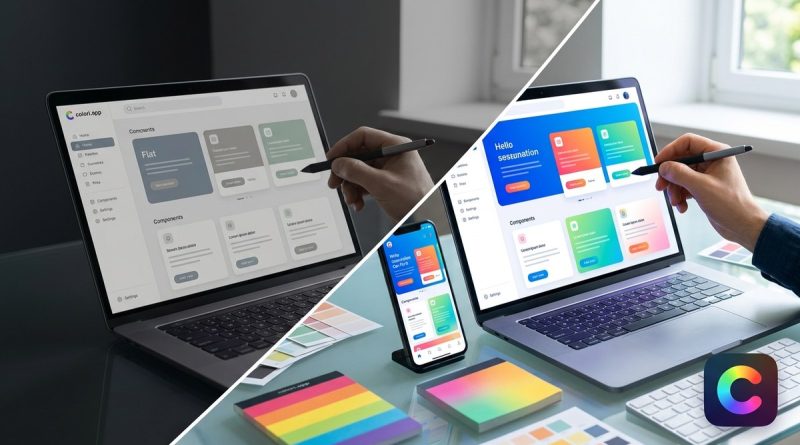
Why Your UI Feels Flat (and How Saturation Can Fix It)
You open your design file. You have spent hours on the layout. The spacing is solid. The typography is clean. But something feels off. The interface looks dull. It lacks that professional polish you see in your favorite apps. You check your grid, your margins, your font weights. Everything seems fine. So why does the whole thing feel lifeless?
The answer is probably hiding in your color palette. Not the hue choices. Not the brightness. The culprit is saturation. Saturation is the intensity or purity of a color. When saturation is off, your UI loses depth. It becomes flat. The good news is that fixing saturation is one of the fastest ways to bring your design back to life.
Flat UI is often a saturation problem, not a hue problem. When every color in your palette has the same intensity, the interface loses depth and feels boring. By introducing a range of saturation levels from muted to vivid you create hierarchy, focus, and visual interest. This guide shows you how to diagnose and fix flat saturation.
The Hidden Cause of Flat Interfaces
Many designers think flatness comes from bad contrast. They try to fix it by making colors darker or lighter. That helps sometimes. But the real issue is usually saturation uniformity.
Imagine a button that is a medium blue. The background is a light gray. The text is a dark gray. Every color has a similar level of saturation. Nothing pops. The eye has no clear place to rest. The design feels flat because there is no variation in color intensity.
Saturation controls how much a color stands out. A highly saturated color feels energetic and forward. A desaturated color feels calm and recedes into the background. When you use only one saturation level, everything competes for attention. Nothing wins.
How Saturation Creates Depth
Think of saturation as a volume knob for color. Turning it up makes a color shout. Turning it down makes it whisper. In a well designed interface, you need both whispers and shouts.
Here is a simple way to visualize it. Look at a modern dashboard like Notion or Linear. The primary actions use vivid, saturated colors. The background surfaces use very desaturated grays or near whites. The secondary information uses mid saturation tones. This range of saturation creates a clear visual hierarchy.
Your eye goes to the most saturated element first. That is where the action is. The less saturated areas provide context without competing. This is the secret to making a UI feel dimensional.
Common Saturation Mistakes
Let us look at the mistakes that make your UI look flat. These are patterns I see all the time in junior and mid level portfolios.
Mistake 1: All Colors at Full Saturation
Some designers pick a palette from a brand guide and use every color at 100% saturation. The result is a chaotic, shouty mess. Every element screams for attention. The brain gets overwhelmed and shuts down. The design feels loud but flat because there is no contrast in intensity.
Mistake 2: All Colors at Low Saturation
The opposite problem. A designer wants a soft, minimalist look. They desaturate everything. The result is a washed out interface with no energy. It looks safe but boring. Users might not know why, but they will feel uninspired.
Mistake 3: Random Saturation
This is when saturation levels are chosen arbitrarily. A button is vivid, but the heading is also vivid. The border is mid saturation, but so is the background. Nothing is intentional. The eye bounces around without a clear path. The design feels confusing and flat.
A Practical System for Saturation
Instead of guessing, use a structured approach. Here is a numbered process to fix flat UI with saturation.
-
Identify your primary action color. This is the color for your main call to action, primary buttons, or key interactive elements. Set this color to a high saturation level (70% to 90%). This is your loudest voice.
-
Set your background and surface colors. These are the large areas like page backgrounds, card backgrounds, and sidebars. Use very low saturation (0% to 15%). These are your whispers. They should feel neutral and supportive.
-
Define your accent and secondary colors. These are for secondary buttons, links, icons, and headings. Use medium saturation (30% to 50%). These colors should be noticeable but not dominant.
-
Adjust your text colors. Dark text should have very low saturation. A pure black is 0% saturation. A dark gray with a hint of blue is still low saturation. Keep text readable and calm.
-
Test your hierarchy. Look at your interface in grayscale first. If the contrast is clear, add color using your saturation levels. The most important elements should have the highest saturation.
Saturation Techniques and Mistakes Table
Here is a reference table to help you make decisions.
| Technique | How to Do It | Common Mistake | Fix |
|---|---|---|---|
| Saturation hierarchy | Assign high saturation to primary actions, low to backgrounds | Using the same saturation for everything | Audit your palette and create 3 saturation tiers |
| Desaturated backgrounds | Use near white or near gray with a tint of your brand color | Using pure white or pure gray (looks cold) | Add a tiny amount of your brand hue to the background |
| Muted accents | Use medium saturation for secondary elements | Making secondary elements too bright | Drop saturation by 20% to 30% for accents |
| Vivid CTAs | Push saturation to 80%+ for primary buttons | Using the same vivid color for all buttons | Reserve high saturation only for the primary action |
| Text color | Keep text saturation below 10% | Using colored text that strains the eyes | Stick to near black with a subtle hue |
Why Saturation Matters More Than Hue
A common myth is that changing the hue is the best way to add variety. You might think adding a green button next to a blue button will create interest. But that often creates confusion. Users do not know which green means what.
Saturation is a more subtle and powerful tool. You can use a single hue and vary its saturation to create a complete, cohesive interface. A blue at 80% saturation for the button, a blue at 40% for the heading, and a blue at 5% for the background. This creates a monochromatic palette that feels rich and intentional.
“Saturation is the designer’s secret weapon for depth. You can build entire interfaces with one hue as long as you vary the saturation and value correctly. It is the difference between a flat poster and a dimensional space.” — A senior product designer I worked with at a SaaS company.
Diagnosing Your Own UI
Before you fix flat UI, you need to diagnose it. Here is a checklist you can run through.
- Open your design file.
- Pick a few key elements: background, heading, body text, primary button, secondary button.
- Check the saturation value for each one.
- Are they all within 20 points of each other? That is a problem.
- Are they all above 50%? That is also a problem.
- Are they all below 20%? That is definitely a problem.
The goal is a spread. You want a low saturation background (around 5%), a medium saturation accent (around 40%), and a high saturation action (around 80%). That spread creates depth.
Bringing Saturation into Your Workflow
You do not need to memorize saturation numbers. You need a habit. Here is a simple way to build saturation awareness into your process.
First, design your first pass with only grays. Focus on layout and hierarchy. Then, introduce one saturated color for your primary action. See how it feels. Then, add a desaturated version of that same hue for your backgrounds. Finally, add a medium saturation version for your accents.
This method forces you to think about saturation as a system. You are not just picking colors. You are building a visual language where saturation defines importance.
Tools and Resources
If you want a deeper understanding of how saturation works with other color properties, check out our guide on the designer’s guide to using saturation and value for depth. It explains how saturation interacts with lightness and brightness to create even more dimension.
For a broader look at building color confidence, read our article on essential color theory principles every UI designer should know. It covers the foundational concepts that support saturation decisions.
Your Saturation Fix in Practice
Let me give you a real example. A designer I mentored was working on a project management app. The UI used a blue primary color. But the background was a light blue. The cards were a medium blue. The buttons were the same medium blue. Everything was blue at a similar saturation level. The interface felt flat and monotonous.
We made one change. We desaturated the background to a near white with a tiny blue tint. We kept the cards at a medium saturation. We pushed the primary button to a vivid, highly saturated blue. The difference was immediate. The button popped. The cards had structure. The background receded. The interface gained depth without changing a single hue.
That is the power of saturation.
One Last Check Before You Ship
Before you finalize any UI, run this final test. Reduce the opacity of all your colors to 50% in your mind. If everything looks like the same grayish color, your saturation is too uniform. If some elements still stand out as darker or lighter, your saturation is working.
You can also use a color picker tool to check your saturation values. Aim for a range that spans at least 50 points between your lowest and highest saturation elements. That gap creates the visual depth your design needs.
Saturation Is Your Superpower
Flat UI is not a death sentence. It is a signal that your saturation needs adjustment. The fix is simple and repeatable. Use low saturation for backgrounds. Use high saturation for actions. Use medium saturation for everything in between. This one change will transform your interfaces from flat to dimensional.
Next time you open a file and feel that something is missing, do not change the layout. Do not change the fonts. Change the saturation. Your users will notice the difference. They may not know why the interface feels better, but they will stay longer and engage more.
That is the goal. Not just a pretty UI, but a functional, engaging experience. And it starts with understanding why your UI looks flat and how saturation can fix it.