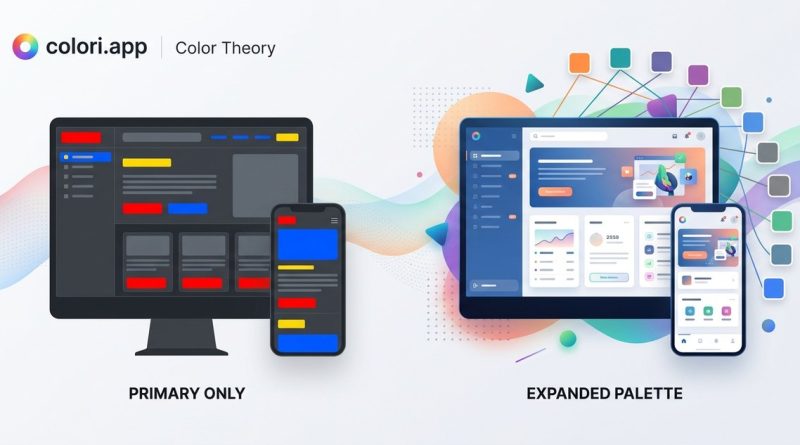
Why Your UI Needs More Than Just Primary Colors
Designing a user interface with only primary colors is like building a house with only a hammer. You can get something standing, but it won’t feel finished, comfortable, or trustworthy. The best digital products use a full spectrum of color to guide attention, communicate meaning, and create a sense of polish. If you have been sticking to a handful of brand colors and hoping they do the heavy lifting, it is time to rethink your approach. Understanding color theory in UI design gives you the tools to make every pixel intentional.
Primary colors alone cannot create hierarchy, accessibility, or emotional resonance in a user interface. To build truly effective designs, you need to apply color theory principles like contrast ratios, complementary harmonies, and psychological associations. This guide walks you through why a limited palette fails and how to add depth without overwhelming your users.
The Real Job of Color in an Interface
Color does not just decorate. It directs. A well-chosen palette tells a user where to look, what to click, and how to feel about the experience. Primary colors (red, blue, yellow) can grab attention, but they lack the nuance needed for complex tasks like showing status, indicating errors, or creating visual hierarchy.
Think about a typical dashboard. You have navigation, data visualizations, buttons, alerts, and background panels. If everything is built from the same three saturated hues, the interface becomes a flat, noisy mess. Users cannot tell which element matters most. Color theory gives you a framework to assign roles: a dominant neutral for backgrounds, a vibrant accent for calls to action, and a muted variant for secondary information.
When you rely solely on primary colors, you miss the chance to use saturation and lightness as communication tools. A soft blue can mean “calm” or “background,” while a bright blue means “active” or “clickable.” That distinction is invisible if you only have one blue.
The Three Roles Every Palette Needs
A mature UI palette goes beyond a hero color and a background. It includes three distinct categories that work together to create balance. If your current palette is missing one of these, your design probably feels incomplete.
Dominant Color
This is your largest area of color. It covers backgrounds, containers, and large text blocks. In most interfaces, the dominant color is a neutral: off-white, light gray, or a very desaturated hue. Its job is to recede so that other elements can step forward. If your dominant color is a pure primary, the whole screen fights for attention.
Accent Color
This is your action color. It appears on buttons, links, and interactive elements. An accent should contrast strongly against the dominant color. A saturated blue or green works well here because it feels trustworthy and clickable. Your accent color is where you can introduce a primary hue, but only if you use it sparingly. Too much accent color creates visual noise.
Support Color
This color fills the gap between dominant and accent. It appears on cards, sidebars, borders, and secondary buttons. Support colors are usually tints or shades of your dominant hue, or a muted version of your accent. They add depth without shouting. If your design has only two colors, the support role is missing, and the interface looks flat.
To see how these roles come together, check out our guide on how to use the 60-30-10 rule for balanced UI color schemes. It explains exactly how to split your palette into percentages for a professional finish.
Why Contrast Is the Most Important Tool
You can choose the most beautiful colors in the world, but if they do not contrast enough, your design fails. Low contrast makes text unreadable, buttons invisible, and users frustrated. This is where color theory in UI design gets practical: you need to understand luminance, not just hue.
A common mistake is pairing two colors that look different on the color wheel but have similar brightness. For example, middle gray text on a light blue background might seem fine until you squint and realize the text almost disappears. The solution is to check contrast ratios. The Web Content Accessibility Guidelines recommend a minimum contrast ratio of 4.5:1 for normal text and 3:1 for large text.
Here is a breakdown of common contrast mistakes and how to fix them:
| Mistake | Example | Fix |
|---|---|---|
| Similar luminance | Light gray text on white | Use dark gray or black text |
| Hue-only contrast | Red text on green background | Adjust brightness of one color |
| Low saturation contrast | Pastel button on pastel background | Increase saturation on the button |
| Ignoring color blindness | Green success indicator alone | Add an icon or text label |
| Overusing black | Pure black text on white | Use a very dark charcoal instead |
If you want to go deeper into this topic, read our article on why color contrast ratios matter for accessibility and aesthetics. It covers the math behind contrast and how to test your designs.
How to Build a Palette That Works
Building a palette from scratch can feel overwhelming. A structured process makes it repeatable. Follow these steps to create a color system that supports usability and aesthetics.
-
Start with the function. List every element in your interface: background, text, buttons, links, errors, success messages, borders, and hover states. Each element needs a color role.
-
Choose a neutral base. Pick a light or dark neutral for your dominant color. Off-white with a subtle warm or cool tint works well for light mode. A deep charcoal works for dark mode.
-
Select one accent color. This is your primary brand color. Choose a hue that matches the emotional tone of your product. Blue for trust, green for growth, or orange for energy.
-
Build a support palette. Create two to three tints of your dominant color. Then create a desaturated version of your accent color for secondary buttons and cards.
-
Test for accessibility. Run your palette through a contrast checker. Ensure all text combinations meet the 4.5:1 ratio. Simulate how the palette looks to someone with deuteranopia or protanopia.
-
Document the system. Write down the hex codes, the role of each color, and the usage rules. Share this with your team so everyone applies the palette consistently.
For a more detailed walkthrough, see our post on mastering color palette selection for stunning web designs. It includes examples of real palettes and how they perform in different contexts.
The Psychological Layer You Cannot Ignore
Color carries cultural and emotional baggage. In the United States, red often means danger or urgency, while green means go or success. But these associations are not universal. If your product serves a global audience, you need to consider how different cultures interpret color.
Even within a single market, context matters. A bright yellow might work for a children’s app but feel cheap for a financial tool. A deep purple can signal luxury or creativity depending on the industry. This is why color theory in UI design must include psychology. You are not just picking colors that look good together. You are picking colors that tell the right story.
Consider what each color generally communicates in US digital design:
- Blue: trust, security, professionalism. Used by banks, social media, and healthcare apps.
- Green: growth, health, nature. Common in finance, environmental tools, and wellness.
- Red: urgency, passion, error. Used for alerts, sales, and delete actions.
- Yellow: optimism, warmth, caution. Works for notifications and playful brands.
- Purple: creativity, luxury, wisdom. Found in beauty, spirituality, and premium tools.
If you want to apply these insights directly to your work, read our guide on how to use color psychology to enhance user engagement in web design. It gives you practical examples of psychology in action.
Common Pitfalls That Undermine Your Palette
Even experienced designers fall into traps. Here are the most frequent mistakes and how to avoid them.
- Using too many colors. A palette with more than five distinct hues becomes chaotic. Stick to one dominant, one accent, and two to three supports.
- Ignoring dark mode. Your palette must work on both light and dark backgrounds. Test every color on white and black to ensure readability.
- Forgetting hover and active states. Interactive elements need distinct colors for resting, hovering, pressing, and disabled states. Plan for all four.
- Relying on brand colors alone. Brand colors are often chosen for logos and print. They may not translate well to digital interfaces. Adapt them by adjusting saturation and lightness.
- Neglecting color blindness. Around 8 percent of men and 0.5 percent of women have some form of color vision deficiency. Use icons, patterns, or text labels alongside color cues.
For a full list of errors and their solutions, check out our article on 7 color theory mistakes that ruin your web design and how to fix them. It is a handy reference to keep open while you design.
The Role of Harmony and Temperature
Color harmony is about how colors relate on the wheel. Analogous colors sit next to each other and create calm, cohesive looks. Complementary colors sit opposite each other and create high contrast. Triadic schemes use three evenly spaced hues for a vibrant but balanced feel.
Temperature matters too. Warm colors (reds, oranges, yellows) feel active and close. Cool colors (blues, greens, purples) feel calm and distant. A good interface uses temperature to create depth. A warm accent button on a cool background draws the eye naturally.
If you want to learn more about specific harmony types, read our post on why analogous colors create calming, cohesive interfaces. It explains how to use neighboring hues to build trust and reduce visual stress.
Accessibility Is Not Optional
Accessibility is not a feature. It is a requirement. Every user deserves to interact with your interface, regardless of how they perceive color. This means going beyond contrast ratios.
Use these practices to make your palette inclusive:
- Pair color with text labels. Do not rely on color alone to convey status.
- Use patterns or icons for data visualizations. A green line and a red line become indistinguishable for someone with color blindness.
- Provide a high-contrast mode. Some users need maximum luminance difference to read comfortably.
- Test with simulation tools. Figma plugins and browser extensions let you see your design through different color vision deficiencies.
For a step by step approach, read our article on 5 steps to designing color accessible web interfaces. It covers testing tools, contrast checkers, and real user feedback.
When to Break the Rules
Color theory provides guidelines, not laws. There are moments when breaking the rules creates something memorable. A monochromatic palette with a single pop of neon can be stunning. A fully saturated interface can work for a game or a creative tool.
“The best designers learn the rules so well that they know exactly when to break them. But they break them on purpose, not by accident.” — A common sentiment among senior product designers.
Before you break a rule, ask yourself why. If you are using low contrast text because it looks trendy, your users will struggle. If you are using a triadic scheme because it matches the chaotic energy of your brand, that is intentional. Always test your rule breaking with real users before shipping.
How to Refine Your Palette Over Time
A palette is not static. As your product grows, you may need to add new colors for new features. The key is to extend your system without breaking it.
Create a set of semantic colors: one for success, one for error, one for warning, and one for info. These should feel related to your main palette but distinct enough to be recognized instantly. For example, if your accent is blue, your success color could be a green that shares the same saturation level. Your error color could be a red that sits at the same lightness.
For more on this, read our guide on top techniques for creating effective color schemes in UI design. It covers semantic colors and how to scale your palette for large applications.
Your Next Steps
If you read this far, you already understand that color theory in UI design is about more than picking pretty hues. It is about creating systems that communicate, guide, and include. Start by auditing your current palette. Identify which roles are missing. Check your contrast ratios. Add a support color. Test with accessibility tools.
Then, apply what you learned to your next project. Use the 60-30-10 rule to distribute your colors. Choose an accent that matches the emotional tone of your product. Build a support palette that adds depth without distraction. Document everything so your team can stay consistent.
The difference between an amateur interface and a professional one is often invisible. It is the soft gray that makes the white card feel grounded. It is the subtle blue that tells you a button is clickable before you hover. It is the careful balance of warmth and coolness that makes a screen feel comfortable.
Your users may not notice these choices consciously, but they will feel them. They will trust your product more. They will complete tasks faster. They will come back.
Start small. Pick one interface element that feels flat and give it a support color. See how it changes the overall feel. Then keep going. Every improvement adds up to a design that works for everyone.