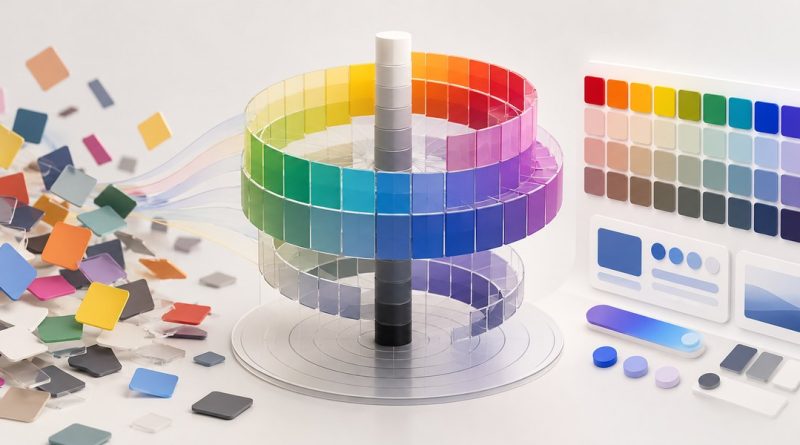
Stop Guessing: How to Use the Munsell Color System for Precise UI Palettes
Most designers pick UI colors by feel. You open a color picker, slide a few bars, and hope the result looks cohesive next to everything else. Sometimes it works. Often it doesn’t. The problem isn’t your eye. It’s the lack of a system. The Munsell Color System, originally developed for physical color standards, offers a structured alternative. It breaks color down into three measurable dimensions: hue, value, and chroma. When you apply this framework to digital design, you stop guessing and start building palettes with intention. You get consistent contrast, natural hierarchy, and colors that actually work together.
The Munsell Color System replaces subjective color picking with a repeatable process based on hue, value, and chroma. By treating color as three independent variables, you can create UI palettes that maintain harmony across light and dark modes, meet WCAG contrast ratios, and scale from one accent color to a full semantic token set. This guide shows you how to apply Munsell thinking to your next project.
Why the Munsell Model Fits Digital Design
Most digital color tools rely on HSL or HSB. Those models are fine for quick edits, but they don’t map well to how humans perceive differences in lightness and saturation. The Munsell system was built from visual experiments. Albert Munsell asked people to sort color chips by perceived lightness, hue, and intensity. The result is a three-axis model that mirrors human vision more closely than a mathematical cylinder.
For UI work, this matters because you are designing for human eyes, not for code. When you want a lighter version of a button color, you need a predictable step in perceived lightness. The Munsell system gives you that. It also prevents the muddy look that happens when you just lower the lightness slider in HSB without adjusting saturation.
The Three Axes: Hue, Value, and Chroma
The Munsell system organizes color along three independent dimensions. Understanding each one is the foundation for building precise palettes.
Hue
Hue is the color family. Red, yellow, green, blue, purple. Munsell divided the hue circle into ten principal families, each with four subdivisions. For UI work, you don’t need all forty. You need a clear understanding of where your brand colors sit on the wheel and which hue relationships create harmony.
Pick a primary hue for your brand. Then choose secondary hues that sit at consistent intervals around the wheel. A split-complementary scheme uses hues that are roughly 120 degrees apart. An analogous scheme uses hues that sit close together. The Munsell hue notation (like 5R or 7.5YR) gives you a precise language to describe those relationships.
Value
Value is the lightness of a color, measured on a scale from 0 (black) to 10 (white). This is the most practical axis for UI design. Value determines readability. Text needs high value contrast against its background. Buttons need enough value difference from the canvas to feel tappable.
The Munsell value scale is perceptual. A jump from value 4 to value 5 looks like a similar step in brightness as a jump from value 7 to value 8. This linear perception is exactly what you need when building shade scales for a color token system. You can define a neutral scale from dark gray to light gray and know that each step feels evenly spaced.
Chroma
Chroma is the intensity or purity of a color. Low chroma colors look grayish or muted. High chroma colors look vivid. In UI design, chroma controls the emotional weight of an element. A high chroma accent button draws attention. A low chroma background recedes.
The mistake many designers make is keeping chroma constant across all values. A high chroma color at a low value looks dark and intense. The same chroma at a high value looks pastel. Munsell’s notation includes chroma as a separate variable, so you can adjust value without accidentally washing out the color’s character.
How to Build a Munsell-Inspired UI Palette
Follow these five steps to create a palette that is consistent, accessible, and easy to maintain.
-
Choose your principal hue. Start with the core brand color. Identify its Munsell hue family. Write down the hue notation so you can reference it later.
-
Define your value range. Decide the lightest and darkest values you need. For most UI systems, you will want a range from value 2 (dark backgrounds or text) to value 9 (light surfaces). The neutral scale (grays) should use the same value steps as your chromatic colors.
-
Set chroma levels for each role. High chroma for accents and calls to action. Medium chroma for primary UI elements like headers and icons. Low chroma for surfaces and backgrounds. Keep these chroma levels consistent across all hues.
-
Generate intermediate shades. For each color in your system, produce lighter and darker versions by moving along the value axis while keeping hue and chroma constant. This gives you a family of related colors that feel cohesive.
-
Test contrast with value, not chroma. WCAG 2.1 requires a contrast ratio of at least 4.5:1 for normal text. Use the value axis to meet this requirement. A dark text at value 2 on a light background at value 8 gives you plenty of contrast without needing high chroma.
Common Mistakes When Using Color Systems in UI
| Mistake | Why It Happens | Munsell Fix |
|---|---|---|
| Muddy dark colors | Lowering value without reducing chroma | Reduce chroma as value decreases to keep colors clean |
| Washed out light colors | Keeping chroma constant at high values | Increase chroma slightly at high values to maintain color identity |
| Uneven contrast steps | Using HSL lightness instead of perceptual value | Use the Munsell value scale for perceptually even steps |
| Clashing accent colors | Choosing hues without considering value contrast | Ensure accent colors have a value difference of at least 3 steps from their background |
| Flat neutral scale | Using pure grays that feel lifeless | Add a tiny amount of hue to neutrals for warmth or coolness |
Practical Steps for Your Next Project
Here is a bulleted checklist you can follow the next time you start a UI color system.
- Identify your primary brand hue using Munsell notation.
- Map your value range from 2 to 9 on a neutral scale.
- Assign chroma levels: high for accents, medium for UI, low for surfaces.
- Build shade scales by varying value only.
- Generate a neutral scale using a warm or cool tint at low chroma.
- Check all text-background pairs against WCAG contrast ratios.
- Test your palette in both light mode and dark mode by inverting the value axis.
“The Munsell system taught me that color is not a mystery. It is a set of relationships you can measure and repeat. Once you stop treating color as magic, you start making better design decisions.”
* Michele Clamp, creator of ChromaMagic
Integrating Munsell With Modern Design Tools
You do not need specialized software to use the Munsell system. Most design tools let you work in HSB or HSL. The trick is to mentally map those sliders to Munsell axes. Think of the S slider as chroma and the B or L slider as value. Keep hue fixed while you adjust the other two.
For a more precise workflow, use a tool that supports OKLCH color space. OKLCH is a modern adaptation of the Munsell perceptual model. It gives you lightness (L), chroma (C), and hue (H) as separate controls. This lets you build shade scales with mathematical precision. If you want to understand the underlying theory better, the guide on essential color theory principles every UI designer should know covers the differences between color models in depth.
When you create your neutral scale, avoid pure gray. A small shift in hue toward warm or cool gives the interface life. The article on why color temperature matters more than you think in web design explains how a subtle warm tint can make a dashboard feel more inviting.
The Munsell Advantage for Accessibility
Accessibility guidelines ask for luminance contrast, not just hue difference. The Munsell value axis directly controls perceived lightness, which maps to luminance. This makes it straightforward to meet WCAG requirements.
For example, if your primary text is a dark blue at value 3, your background should be at value 7 or higher. That gives you a four-step value difference, which comfortably exceeds the minimum contrast ratio. You do not need to rely on high chroma to create separation. The guide on designing accessible UI color schemes for inclusivity and usability offers additional strategies for color vision deficiencies.
From One Palette to a Full System
The real power of the Munsell approach shows when you scale from a single palette to a complete design system. You can define semantic color tokens (primary, secondary, success, warning, error) and generate every shade for each token using the same value steps and chroma rules.
This means your success green and your error red share the same lightness hierarchy. A success button at value 6 looks the same weight as an error button at value 6. The only difference is hue. Users perceive consistency even when the colors are very different. The post on how to use the 60-30-10 rule for balanced UI color schemes shows how to distribute these tokens across your interface for visual balance.
Putting the System Into Practice
The Munsell Color System is not a relic of physical paint chips. It is a practical framework for any designer who wants predictable, repeatable color results. By separating hue, value, and chroma, you gain control over each dimension independently. You can lighten a color without draining its personality. You can darken a color without making it muddy. You can build a neutral scale that feels warm or cool without breaking your contrast ratios.
Start small. Pick one UI component, like a card or a button, and apply the Munsell method to its color family. Generate three shades: the base, a lighter version for hover, and a darker version for pressed state. Compare that to what you would get by just moving the lightness slider in your current tool. The difference in predictability and harmony will be clear.
Once you see the results, apply the same logic to your entire palette. The time you invest in setting up value ranges and chroma levels pays back every time you need a new color variant. You stop guessing. You start building.